Overview
In the previous hands-on session, we ran the Gemma 1B fine-tuning experiment on a raw GCP VM. We had to provision the VM, SSH in, set up the environment, and manually manage the entire process. In this session we will run the exact same experiment as a Vertex AI Custom Training Job, where Vertex AI handles all the infrastructure for us. We submit a job spec, Vertex AI provisions the hardware, runs the job, and terminates everything automatically when done.
Learning Objectives
By the end of this session, you will be able to:
Enable the Vertex AI API and set up the required permissions
Write a Vertex AI Custom Training Job config file
Submit and monitor a training job using the
gcloudCLI
Prerequisites
gcloudCLI installed and configured on your local machineA WandB account and API key
A HuggingFace account and API token with the Gemma 3 1B model license agreement accepted.
Step 1: Enable the Vertex AI API
Run this from your local machine to enable the Vertex AI API:
export PROJECT_ID=$(gcloud config get-value project)

gcloud services enable aiplatform.googleapis.com \
    --project=${PROJECT_ID}
Verify it has been enabled:
gcloud services list --enabled \
    --filter="name:aiplatform.googleapis.com" \
    --project=${PROJECT_ID}
Step 2: Grant the Required Permissions
Vertex AI training jobs run under a service account. Grant it the permissions it needs to read and write to GCS.
export SERVICE_ACCOUNT=$(gcloud iam service-accounts list \
    --filter="displayName:Compute Engine default service account" \
    --format="value(email)" \
    --project=${PROJECT_ID})

gcloud projects add-iam-policy-binding ${PROJECT_ID} \
    --member="serviceAccount:${SERVICE_ACCOUNT}" \
    --role="roles/storage.admin"

gcloud projects add-iam-policy-binding ${PROJECT_ID} \
    --member="serviceAccount:${SERVICE_ACCOUNT}" \
    --role="roles/aiplatform.user"
Step 3: Create the Job Config
Vertex AI Custom Training Jobs are defined by a YAML config file that specifies the machine type, container image, and the command to run. Create a file called vertex_job.yaml in your project folder.
Paste the following code, replacing the placeholder values for the environment variables (YOUR_HF_TOKEN, YOUR_WANDB_API_KEY, YOUR_WANDB_PROJECT, YOUR_GCS_BUCKET_NAME) with the actual values.
workerPoolSpecs:
  - machineSpec:
      machineType: g2-standard-4
      acceleratorType: NVIDIA_L4
      acceleratorCount: 1
    replicaCount: 1
    containerSpec:
      imageUri: us-docker.pkg.dev/deeplearning-platform-release/gcr.io/pytorch-gpu.2-0.py310
      command:
        - bash
        - -c
      args:
        - |
          curl -LsSf https://astral.sh/uv/install.sh | sh &&
          source $HOME/.local/bin/env &&
          git clone https://github.com/rexsimiloluwah/finetuning-gemma-1b-aims-gcp-tutorial.git &&
          cd finetuning-gemma-1b-aims-gcp-tutorial &&
          uv sync &&
          uv run python -m scripts.run_train data.source=gcs data.max_train_samples=10000 training.num_epochs=2 training.batch_size=8 experiment_id=exp_lora_r8_vertex
          gsutil -m cp -r outputs/ gs://$BUCKET_NAME/runs/exp_lora_r8_vertex
      env:
        - name: HF_TOKEN
          value: <YOUR_HF_TOKEN>
        - name: WANDB_API_KEY
          value: <YOUR_WANDB_API_KEY>
        - name: WANDB_PROJECT
          value: <YOUR_WANDB_PROJECT>
        - name: BUCKET_NAME
          value: <YOUR_GCS_BUCKET_NAME>
This configuration does the following:
Automatically spins up a Google Cloud VM equipped with an NVIDIA L4 GPU and the necessary CUDA drivers.
Automates environment setup: clones the training code, installs the
uvpackage manager, and installs all Python dependencies.Runs the Gemma 1B fine-tuning script and automatically persists the resulting model weights and logs to your GCS bucket.
Step 4: Submit the Training Job
This command uses the gcloud CLI to submit a Vertex AI Custom Training Job based on the specifications in vertex_job.yaml.
export REGION="europe-west4" # change to any region you want
export AIMSUSERNAME="<YOUR_AIMS_USERNAME>"
export JOB_NAME="${AIMSUSERNAME}-gemma-finetune-$(date +%Y%m%d%H%M%S)"

gcloud ai custom-jobs create \
    --region=${REGION} \
    --display-name=${JOB_NAME} \
    --config=vertex_job.yaml \
    --project=${PROJECT_ID}
You should see an output confirming that the job was successfully created with a job ID.
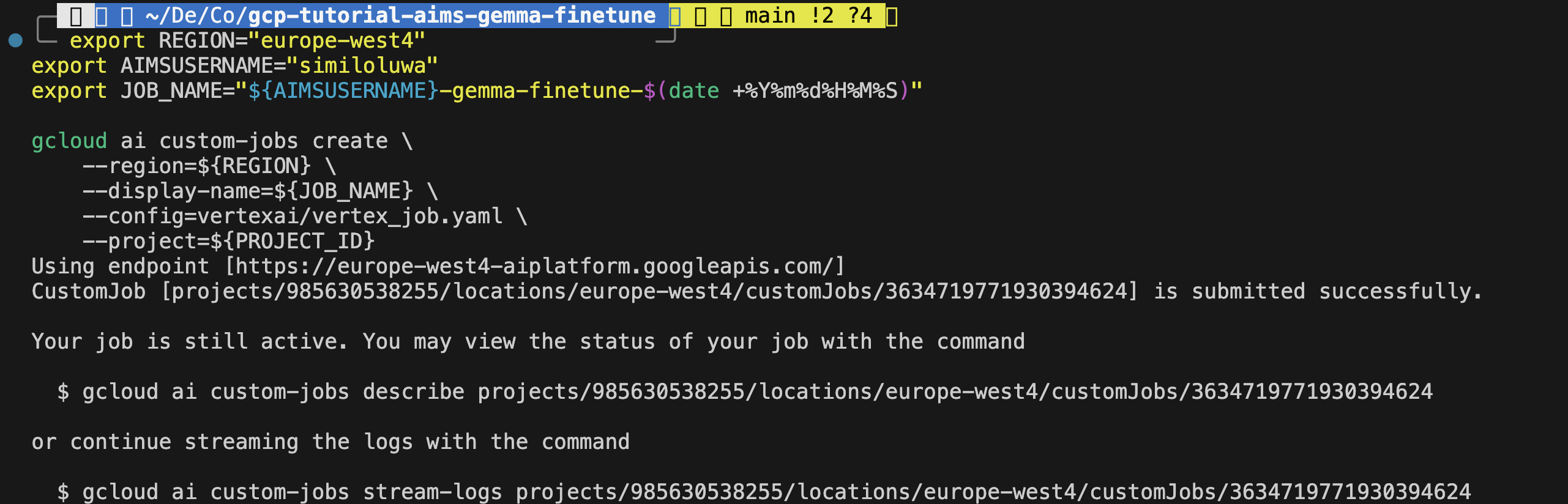
Screenshot: Terminal output showing successfully Vertex AI training job creation with job ID
Step 5: Monitor the Job
Check the job status from the CLI:
gcloud ai custom-jobs list \
    --region=${REGION} \
    --project=${PROJECT_ID}
Stream the logs in real time:
# Ger the Job ID using the Display Name
JOB_ID=$(gcloud ai custom-jobs list \
    --region=${REGION} \
    --filter="displayName=${JOB_NAME}" \
    --format="value(name.scope(customJobs))")

# Stream the logs using the ID
gcloud ai custom-jobs stream-logs ${JOB_ID} --region=${REGION}
You can also monitor the job from the GCP Console.
Go to Vertex AI page on your GCP Console
Navigate to the Custom Jobs tab. Ensure the region you used when submitting the job is selected.
Click on the job you want to monitor
Click on View logs to view the logs for the training job.
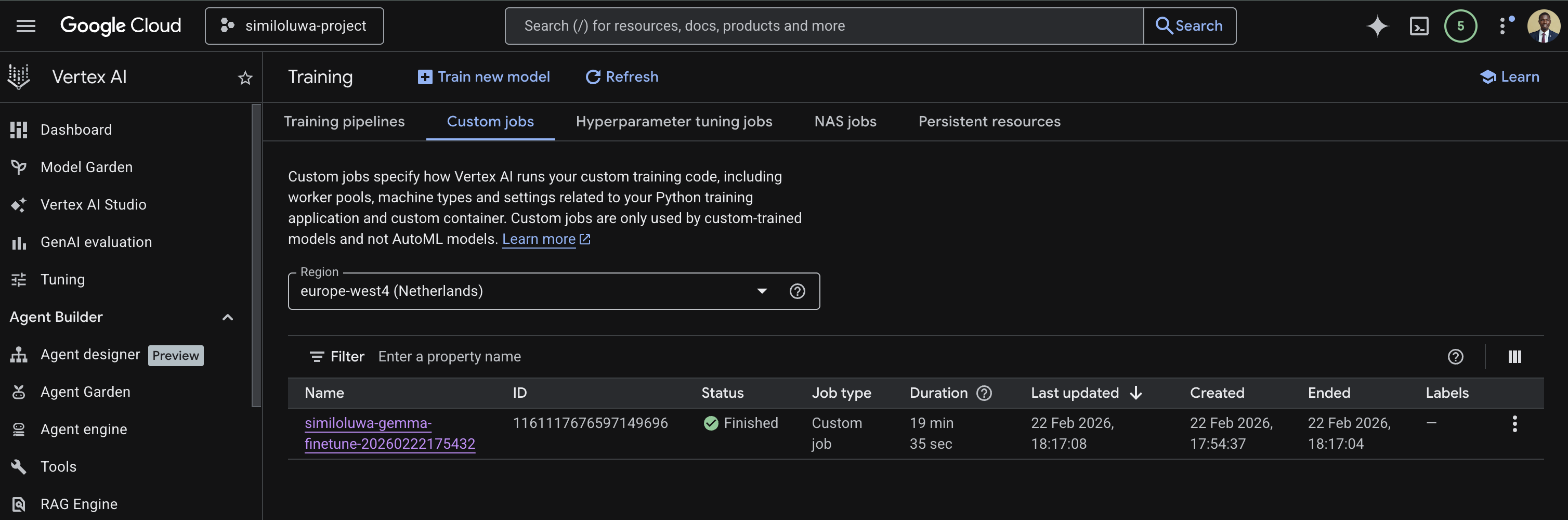
Screenshot: GCP Console showing the custom jobs list with job status
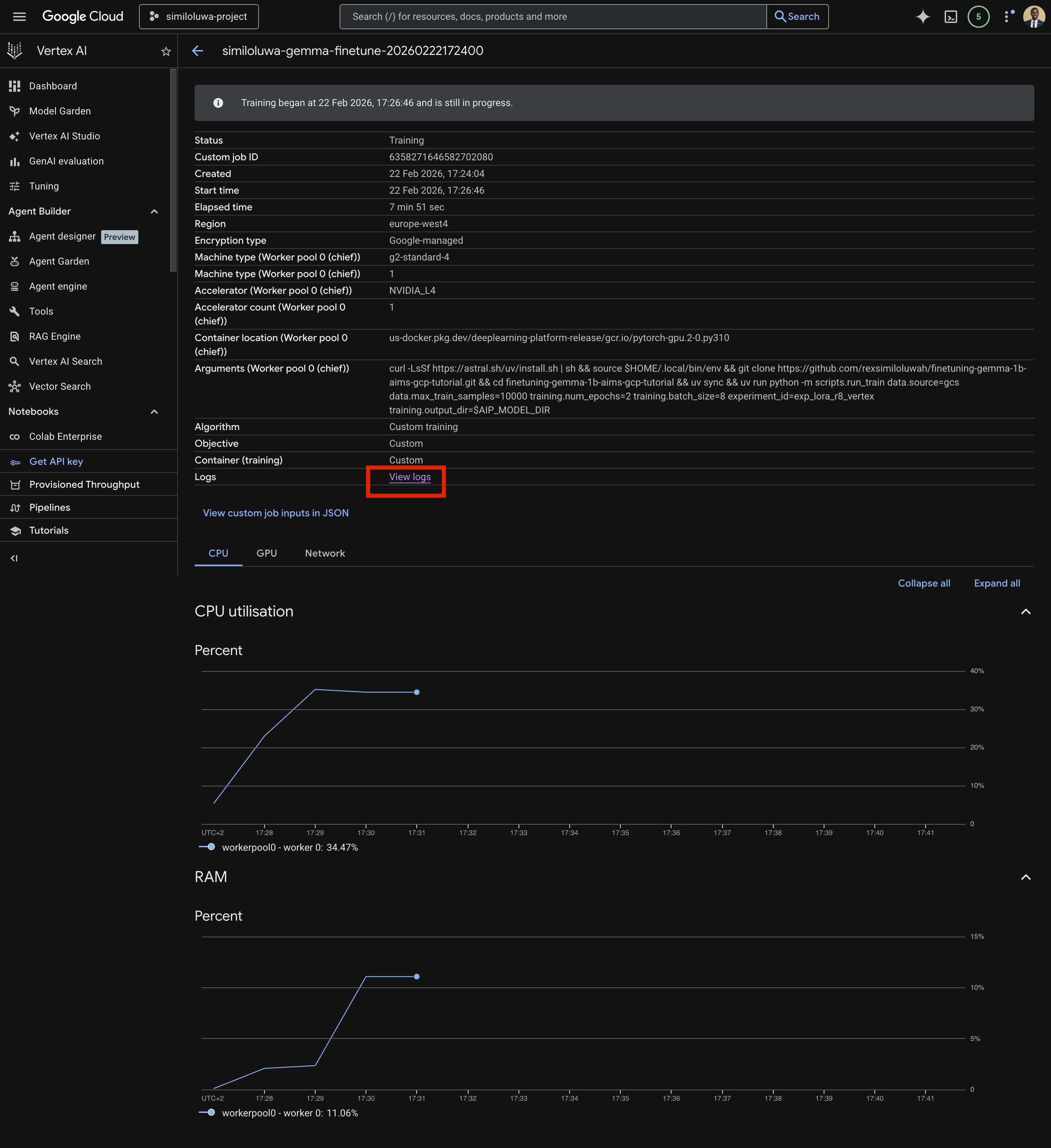
Screenshot: GCP Console showing details for a custom training job with the “View logs” link
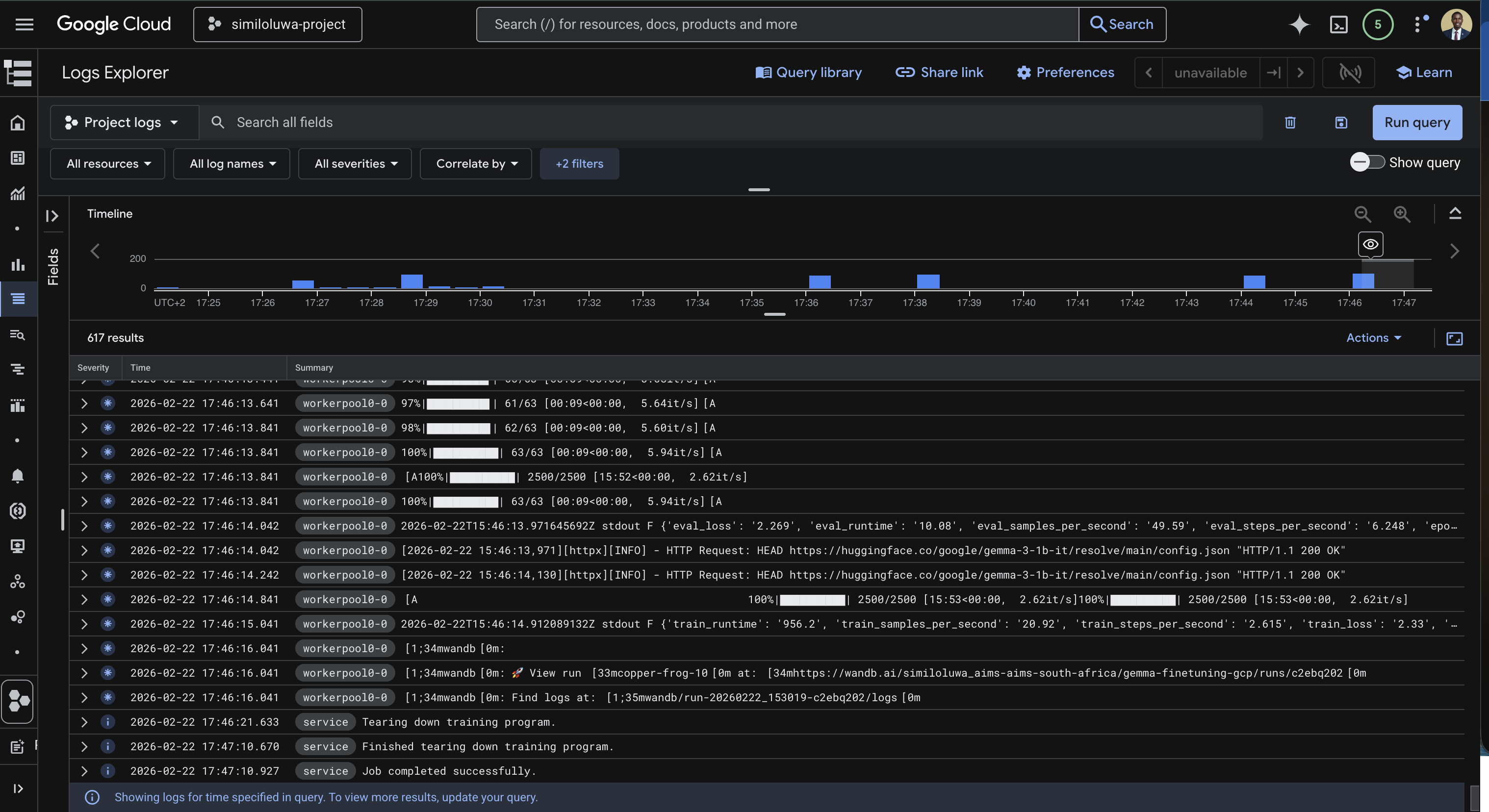
Screenshot: GCP Console showing the custom training job logs streaming in real time
As with the VM-based run, you can also monitor training metrics in real time from your WandB dashboard at wandb.ai. You will see. train/loss, eval/loss, train/grad_norm, train/learning_rate, etc., updating every 10 steps.
Step 6: Verify the Outputs in GCS
Once the job status changes to FINISHED, we can verify that the outputs were synced to your GCS bucket successfully using the GCP Console.
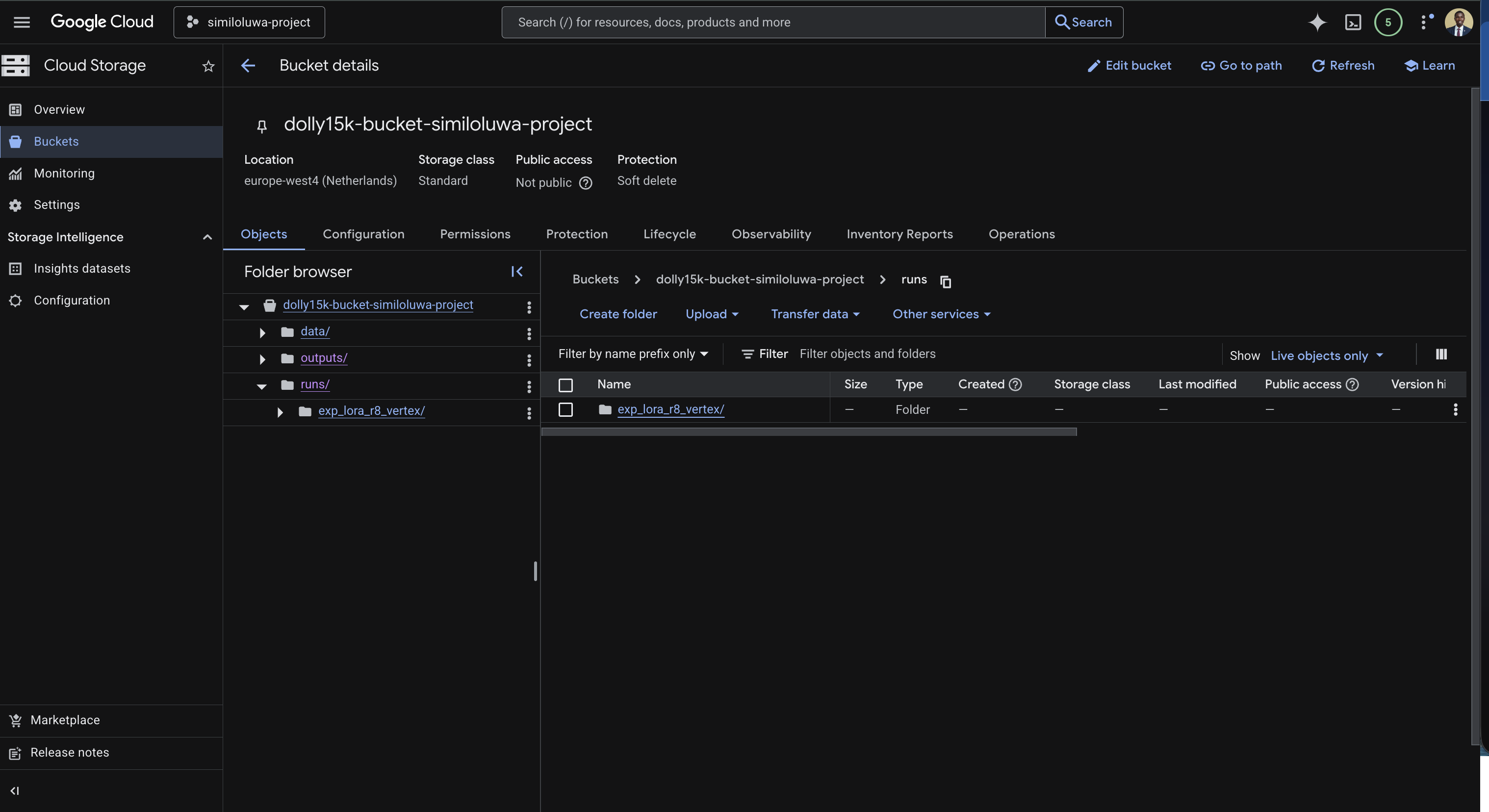
Screenshot: GCS Bucket in GCP Console showing synced output folder
Step 7: Resource Cleanup
Vertex AI Custom Training Jobs terminate automatically when the job completes, so there is no VM delete. The only resource to clean up is the GCS bucket if you no longer need the outputs:
gcloud storage rm --recursive gs://<YOUR_GCS_BUCKET_NAME>🔑 Key Takeaways
Vertex AI Custom Training Jobs eliminate all infrastructure management. You submit a job spec, Vertex AI provisions the hardware, runs the job, and terminates everything automatically when done.
You pay only for the duration of the job. There are no idle costs unlike a raw VM that keeps running until you manually delete it.
The training code itself does not change at all. The only difference from the VM-based approach is how you submit and monitor the job.
Using a pre-built container image with PyTorch already installed significantly speeds up job startup time by avoiding large dependency downloads.
Always sync outputs to GCS explicitly at the end of the job since HuggingFace Trainer saves checkpoints locally inside the ephemeral container.
🚀 What’s Next
In the next hands-on session, we will run the same experiment interactively using Vertex AI Colab Enterprise, a managed notebook environment accessible directly from your browser with no SSH or infrastructure setup required.